WebAssembly modules leverage several browser features in order to support pthreads: The SharedArrayBuffer, web workers, and Atomics.
The SharedArrayBuffer is similar to the ArrayBuffer that WebAssembly modules normally use but this buffer allows multiple threads to share the same block of memory. Each thread runs in its own web worker and Atomics are used to synchronize data between the threads in a safe way.
I won't cover Atomics in this article so, if you'd like to learn more, you can visit the following web page:
In January 2018, the Spectre/Meltdown vulnerabilities forced browser makers to disable support for the SharedArrayBuffer. Since then, browser makers have been working on ways to prevent the exploit. By October 2018, Chrome was able to re-enable it for desktop versions of its browser by using site isolation.
Firefox chose a different approach to prevent the exploit. Rather than site isolation, they only allow access to the SharedArrayBuffer if two response headers are provided. This new approach went live with Firefox 79 that was released on July 28th, 2020.
In this article you're going to learn how to enable the SharedArrayBuffer in Firefox so that you can use pthreads in a WebAssembly module. You'll learn how to load an image file from the device and access the pixel information so that you can adjust the image in the browser. Finally, you'll see how pthreads can be used to speed up the processing.
Suppose you have a web service that lets your users upload an image to your server and download a modified version with various filters now applied. The web page works fine but is a little slow if the images are large because of all the data being uploaded and then downloaded once the modifications are complete. Using all that bandwidth also costs your customers money so you'd like to move the processing from the server to the device.
Rather than jumping in with both feet, you decide that it would be best to create a prototype in order to compare the speed of using JavaScript directly, using a WebAssembly module but without using pthreads, and then using a WebAssembly module with pthreads.
To keep things simple for this test, the image will be converted to grayscale and then the web page will display each image along with how long it took to modify them as shown in the following image:
As the following image shows, your first step towards building this web page is to modify your web server.
1. Modify the web server
In order to enable the SharedArrayBuffer in Firefox, you need to specify two response headers:
-
Cross-Origin-Opener-Policy (COOP) with the value same-origin. This prevents documents from other origins being loaded into the same browsing context. The following web page has more information on this header and the possible values: https://developer.mozilla.org/en-US/docs/Web/HTTP/Headers/Cross-Origin-Opener-Policy
-
Cross-Origin-Embedder-Policy (COEP) with the value require-corp. This prevents the loading of any cross-origin resources that don't explicitly grant permission using COOP above or Cross-Origin Resource Sharing (CORS). For more information on this header and the possible values, you can visit this web page: https://developer.mozilla.org/en-US/docs/Web/HTTP/Headers/Cross-Origin-Embedder-Policy
When you use the require-corp value and try to load a document from a cross-origin location, like a CSS file from a CDN for example, that location will need to support CORS. If you trust that location, you also need to mark that file as loadable by including the crossorigin attribute. You'll see the crossorigin attribute used later in this article.
NOTE: If you're using 'localhost' as your hostname (http://localhost:8080/ for example), Firefox will enable the SharedArrayBuffer if you specify the COOP and COEP response headers. If you use any other hostname, Firefox will only enable the SharedArrayBuffer if you use HTTPS with a valid certificate.
For this article, I'm going to use Python as the web server but you can use any web server you're comfortable with.
Create a
frontend folder for the web page files that you'll create in this article.
If you choose to use your own web server, feel free to skip to the end of this section and continue on with section "
2. Create the web page" once you've adjusted your web server to return the response headers with the required values.
You will need to modify the
wasm-server.py file that was created in the "
Extending Python's Simple HTTP Server" article. If you didn't follow along with that article, the files can be found here:
Place the
wasm-server.py file in the
frontend folder and then open it with your favorite editor.
In the
end_headers method, there's a comment showing the syntax necessary if you wanted to include a CORS header. This is where you'll add the COOP and COEP headers.
Delete the two comments above the
SimpleHTTPServer.SimpleHTTPRequestHandler.end_headers(self) line of code and replace them with the following:
self.send_header("Cross-Origin-Opener-Policy", "same-origin")
self.send_header("Cross-Origin-Embedder-Policy", "require-corp")
Your class should now look like the following code snippet:
class WasmHandler(SimpleHTTPRequestHandler):
def end_headers(
self):
self.send_header("Cross-Origin-Opener-Policy", "same-origin")
self.send_header("Cross-Origin-Embedder-Policy", "require-corp")
SimpleHTTPRequestHandler.end_headers(self)
Save the
wasm-server.py file.
As shown in the following image, your next step is to build the HTML file that will allow a user to open an image file. The HTML file will have four canvas tags with one to show the original image and three to show the grayscale images along with how long the different approaches take to complete.

(click to view the image full size)
2. Create the web page
Most of the HTML for the web page is boilerplate code so I'll only point out key items and will present the full file at the end of this section.
You'll be using the Bootstrap web development framework because it offers a professional-looking web page which is faster than styling everything manually. The files needed for Bootstrap will loaded from a CDN rather than having to download the libraries.
Because you'll be linking to files from a CDN, they're not coming from the same origin as your web page and will be blocked by default because you specified the
require-corp value for the
COEP header. You can include the
crossorigin attribute in the links for the CDN files in order to allow them to be downloaded. As an example, the following JavaScript link specifies the crossorigin attribute because it's hosted on a Google server:
<script src="https://ajax.googleapis.com/ajax/libs/jquery/3.3.1/jquery.min.js" crossorigin></script>
WARNING: You only want to include the crossorigin attribute for files that you know are safe because you are not in control of the server that they're coming from.
As shown in the following code snippet, the
body tag will be given an
onload attribute so that the function you specify,
initializePage in this case, will be called when the page first loads. You'll use this function to wire up an event handler so that you can respond when the user selects a file.
<body onload="initializePage()">
For the file upload control, you'll use the
input tag with the type
file. Rather than the standard file upload control with a browse button and label indicating which file was selected, as shown below, you'll wrap the control in a label styled as a button and hide the input control.
Note that hiding the input control, wrapping it in a label, and styling the label as a button is optional. The file upload will work just fine if you don't make any changes to the input control so long as the input control is of type
file.
You'll also include the
accept attribute for the
input tag to ensure only image files are selected. The upload button's code is shown in the following snippet:
<label class=
"btn btn-primary btn-file">
Upload <input id="fileUpload" type="file" accept="image/*" style="display:none;" />
</label>
Your web page will have four
canvas tags. The canvas tag allows you to draw 2D or 3D graphics on your web page and can even be used for animations. For this article, you'll use it to display the selected image on the first canvas and then the modified images on the other three canvasses. If you'd like to learn more about the canvas tag, you can visit the following web page:
https://developer.mozilla.org/en-US/docs/Web/HTML/Element/canvas
Finally, the HTML for the web page will end with two JavaScript file links. The first JavaScript file,
pthreads.js, you'll create in a moment. The other JavaScript file will be created by Emscripten at the same time as it creates the WebAssembly module. That file handles loading in the WebAssembly module for you, has a number of helper functions to make working with the module easier, and supports various features that might have been enabled when the module was compiled.
Create a file called
pthreads.html, copy the following HTML into it, and then save the file:
<html>
<head>
<title>Pthreads in Firefox</title>
<meta charset="utf-8"></meta>
<meta content="width=device-width, initial-scale=1" name="viewport"></meta>
<link rel="stylesheet" href="https://maxcdn.bootstrapcdn.com/bootstrap/4.1.0/css/bootstrap.min.css" crossorigin></link>
<script src="https://ajax.googleapis.com/ajax/libs/jquery/3.3.1/jquery.min.js" crossorigin></script>
<script src="https://cdnjs.cloudflare.com/ajax/libs/popper.js/1.14.0/umd/popper.min.js" crossorigin></script>
<script src="https://maxcdn.bootstrapcdn.com/bootstrap/4.1.0/js/bootstrap.min.js" crossorigin></script>
</head>
<body onload=
"initializePage()">
<div class=
"d-flex flex-column">
<!-- File upload button -->
<div class=
"p-2">
<label class=
"btn btn-primary btn-file">
Upload <input id="fileUpload" type="file" accept="image/*" style="display:none;" />
</label>
</div>
<div class=
"d-flex flex-wrap">
<!-- Original image -->
<div class=
"p-2 canvasContainer">
<canvas id="originalCanvas" class="border rounded" width="250" height="250"></canvas>
<div class="font-weight-bold">Original</div>
<div class="font-weight-light" id="originalImageDimensions"></div>
</div>
<!-- The modified versions of the image -->
<div class=
"p-2 canvasContainer">
<canvas id="nonThreadedJSCanvas" class="border rounded" width="250" height="250"></canvas>
<div class="font-weight-bold">JS - Non-Threaded</div>
<div class="font-weight-light" id="nonThreadedJSCanvasDuration"></div>
</div>
<div class=
"p-2 canvasContainer">
<canvas id="nonThreadedWasmCanvas" class="border rounded" width="250" height="250"></canvas>
<div class="font-weight-bold">Wasm - Non-Threaded</div>
<div class="font-weight-light" id="nonThreadedWasmCanvasDuration"></div>
</div>
<div class=
"p-2 canvasContainer">
<canvas id="threadedWasmCanvas" class="border rounded" width="250" height="250"></canvas>
<div class="font-weight-bold">Wasm - Threaded</div>
<div class="font-weight-light" id="threadedWasmCanvasDuration"></div>
</div>
</div>
</div>
<script src=
"js/pthreads.js"></script>
<script src=
"js/emscripten_pthread.js"></script>
</body>
</html>
Now that you've created the web page, you need to write the JavaScript that responds to the user choosing a file.
Create the JavaScript to load an image from your user's device
In your
frontend folder, create a
js folder.
In the
js folder, create a file called
pthreads.js and open it with your favorite editor.
The first thing you need to do is create the
initializePage function that will be called when your web page loads. In this function, you'll attach to the file input control's
change event so that when the user chooses a file, your
processImageFile function will be called. Add the following code snippet to your
pthreads.js file:
function initializePage() {
$("#fileUpload").on("change", processImageFile);
}
Next you need to define the
processImageFile function. You'll create a
FileReader object to read in the selected file as a data URL. Once the file's contents have been loaded, you'll pass the data URL that was generated to the
renderOriginalImage function. Add the contents of the following code snippet to your
pthreads.js file after the
initializePage function:
function processImageFile(e) {
const reader =
new FileReader();
reader.onload = e => {
renderOriginalImage(e.target.result);
}
reader.readAsDataURL(e.currentTarget.files[0]);
}
The next function that you're going to create is
renderOriginalImage. This function will first determine the scale needed to draw the user-selected image onto the canvas so that fits within the 250x250 pixel dimensions. It will then call the
renderImage function to display the image on the canvas and then it'll display the dimensions of the image below the canvas.
Because the image is being drawn to the canvas at 250x250 pixels, you'll create a temporary canvas object in order to draw the image at its full size. You'll pull the pixel data from the temporary canvas and pass that off to be adjusted and displayed on the other canvasses.
The full version of the
renderOriginalImage function will be shown in a moment but first, the aspects of the function's code will be explained.
As shown in the following snippet, the first step to drawing the image onto the canvas is to create an instance of an
Image object and have it load the data URL by setting the
src property. You then respond to the
onload event:
function renderOriginalImage(url) {
const originalImage =
new Image();
originalImage.onload = () => {
// you'll draw to the canvas here
}
originalImage.src = url;
}
Within the
onload event, you'll first determine the scale needed for the image so that if fits within the canvas. If the scale is greater than 1.0 then the user-selected image is smaller than the canvas and you'll leave the scale at 1 so that it gets drawn at its original size.
Next, you'll place the details about the image size, and scale to draw it, into an object that you'll name
sizeDetails. You'll pass the original canvas, image, and size details to the
renderImage function to have the image drawn to the original canvas.
Finally, you'll display the dimensions of the image below the canvas as shown in the following snippet:
…
const width = originalImage.width;
const height = originalImage.height;
const originalCanvas = $("#originalCanvas")[0];
let scale = Math.min(originalCanvas.width / width, originalCanvas.height / height);
// If the image is smaller than the canvas, draw at its original size
if (scale > 1.0) { scale = 1; }
// Render the image to the canvas
const sizeDetails = { width: width, height: height, scale: scale };
renderImage(originalCanvas, originalImage, sizeDetails);
// Display the dimensions
$("#originalImageDimensions").text(`Dimensions: ${width} x ${height}`);
…
Your next step is to create a temporary canvas to draw the original image on at its full size as shown in the following snippet:
…
const $canvas = $("<canvas />");
$canvas.prop({ width: width, height: height });
const canvasContext = $canvas[0].getContext("2d");
canvasContext.drawImage(originalImage, 0, 0, width, height);
…
The final portion of code within the
onload event of the Image instance is shown in the following code snippet. The code will grab the pixel data from the temporary canvas using the context's
getImageData function and will pass that off to the
adjustImageJS and
adjustImageWasm functions to modify and display the results.
One thing to note about the following code snippet is that the
adjustImageJS and
adjustImageWasm functions are asynchronous and will finish at some point after the
onload event completes. The functions are asynchronous so that the JavaScript code isn't blocking the browser while the modifications are being made. All three functions will execute at the same time and the canvasses that are ready will be drawn when the data is received rather than in the sequence that the functions were called. The browser will also remain responsive to user input.
If you did want to wait for the functions to complete before exiting the onload event, you can pass the result of each function to a variable (for example:
const promise1 = functionCall();). Using this approach will allow each function to execute concurrently and then you can await the variables (for example:
await promise1;). The following web page has more information on the
async and
await keywords if you'd like to learn more:
https://developer.mozilla.org/en-US/docs/Learn/JavaScript/Asynchronous/Async_await
...
const originalImageData = canvasContext.getImageData(0, 0, width, height);
adjustImageJS(originalImageData, sizeDetails, "nonThreadedJSCanvas");
adjustImageWasm(originalImageData, sizeDetails, "nonThreadedWasmCanvas");
adjustImageWasm(originalImageData, sizeDetails, "threadedWasmCanvas");
...
The full
renderOriginalImage function is shown below. Add it after the
processImageFile function in your
pthreads.js file:
function renderOriginalImage(url) {
const originalImage =
new Image();
originalImage.onload = () => {
const width = originalImage.width;
const height = originalImage.height;
const originalCanvas = $("#originalCanvas")[0];
let scale = Math.min(originalCanvas.width / width, originalCanvas.height / height);
// If the image is smaller than the canvas, draw at its original size
if (scale > 1.0) { scale = 1; }
// Render the image to the canvas
const sizeDetails = { width: width, height: height, scale: scale };
renderImage(originalCanvas, originalImage, sizeDetails);
// Display the dimensions
$("#originalImageDimensions").text(`Dimensions: ${width} x ${height}`);
// Create a temporary canvas and draw the image at its full size.
const $canvas = $("<canvas />");
$canvas.prop({ width: width, height: height });
const canvasContext = $canvas[0].getContext("2d");
canvasContext.drawImage(originalImage, 0, 0, width, height);
// Grab the image data from the temporary canvas, have the data modified by the
// JavaScript code and WebAssembly module, and then render the modified
// images. Note that adjustImageJS and adjustImageWasm are async.
const originalImageData = canvasContext.getImageData(0, 0, width, height);
adjustImageJS(originalImageData, sizeDetails, "nonThreadedJSCanvas");
adjustImageWasm(originalImageData, sizeDetails, "nonThreadedWasmCanvas");
adjustImageWasm(originalImageData, sizeDetails, "threadedWasmCanvas");
}
originalImage.src = url;
}
After the
renderOriginalImage function, you'll need to create the
renderImage function. The function receives a canvas to draw onto, the image source to draw, and the details about the image size and scale.
The function starts out by clearing the canvas of anything that might already be there if this isn't the first time the user selected an image. Next, the scale of the canvas is adjusted to the scale specified in the
sizeDetails object. The image is then drawn to the canvas.
Before the function exits, it resets the scale of the canvas back to its original values by calling the
setTransform function on the context.
Add the
renderImage function, shown in the following snippet, after your
renderOriginalImage function:
function renderImage(canvas, imageSource, sizeDetails) {
const context = canvas.getContext("2d");
context.clearRect(0, 0, 250, 250);
context.scale(sizeDetails.scale, sizeDetails.scale);
context.drawImage(imageSource, 0, 0, sizeDetails.width, sizeDetails.height);
context.setTransform(1, 0, 0, 1, 0, 0);
}
Now that you're able to display the image that the user selects, the next step is shown in the following image where you'll adjust the image data and display the results using only JavaScript. This will give you a comparison to see what the difference is between the JavaScript approach and the two WebAssembly approaches.

(click to view the image full size)
3. Adjusting the image using JavaScript
The
renderOriginalImage function that you created calls the
adjustImageJS function to have the user's selected image adjusted using JavaScript. In the
adjustImageJS function, you'll create a copy of the original image data using the a
Uint8ClampedArray which ensures each value is an integer in the range of
0 to
255. If a value is not an integer, it's rounded to the nearest integer. More information on this array can be found here if you're interested:
https://developer.mozilla.org/en-US/docs/Web/JavaScript/Reference/Global_Objects/Uint8ClampedArray
Once you have a copy of the image data, you'll pass that off to the
adjustPixels function telling it to loop from the first pixel to the last. The function will adjust the pixels in the Uint8ClampedArray instance that you pass in.
Before and after the
adjustPixels call, you'll grab the current date and time to determine how long the function takes to execute.
Finally, you'll call the
renderModifiedImage function to have the modified pixels rendered on the desired canvas.
Add the
adjustImageJS function shown in the following code snippet after the
renderOriginalImage function in your
pthreads.js file:
async function adjustImageJS(imageData, sizeDetails, destinationCanvasId) {
// Get a copy of the imageData and the number of bytes it contains.
const imageDataBytes = Uint8ClampedArray.from(imageData.data);
const bufferSize = imageDataBytes.byteLength;
// Adjust the pixels using JavaScript and get the duration
const Start = new Date();
adjustPixels(imageDataBytes, 0, bufferSize);
const duration = (new Date() - Start);
console.log(`JavaScript version took ${duration} milliseconds to execute.`);
// Have the modified image displayed
renderModifiedImage(destinationCanvasId, imageDataBytes, sizeDetails, duration);
}
Each pixel in the image data has four bytes (one for each color and the alpha channel). The
adjustPixels function will loop from the first index specified to one less than the last index specified and will step through the data in increments of four. Each time through the loop, the
adjustColors function is called to adjust the colors at that index.
Add the
adjustPixels function, that's shown in the following snippet, after the
adjustImageJS function in your
pthreads.js file:
function adjustPixels(imageData, startIndex, stopIndex) {
// Loop through every fourth byte because adjustColors operates on 4
// bytes at a time (RGBA data)
for (
let index = startIndex; index < stopIndex; index += 4) {
adjustColors(imageData, index);
}
}
The
adjustColors function grabs the Red, Green, and Blue values and averages them out. Then it applies the calculated color to the Red, Green, and Blue values to create the grey. The alpha channel isn't adjusted.
Add the
adjustColors function, from the following code snippet, after the
adjustPixels function in your
pthreads.js file.
function adjustColors(imageData, index) {
// Average out the colors
const newColor = ((imageData[index] + imageData[index + 1] +
imageData[index + 2]) / 3);
// Set each channel's value to the new value to make the grey
imageData[index] = newColor; // Red
imageData[index + 1] = newColor; // Green
imageData[index + 2] = newColor; // Blue
// no need to adjust the Alpha channel value
}
Now, to have the modified image data rendered to a canvas, you'll create the
renderModifiedImage function.
You'll want the modified image displayed to the target canvas at the scale needed so that it fits within the canvas. To do this, you'll need to create a temporary canvas at the original image size and then get the image data from that canvas. You then overwrite the image data with the modified data and put that new image data back into the temporary canvas to have it drawn.
Next, you'll call the
renderImage function passing in the destination canvas that the image will be drawn to, the temporary canvas as the image source, and the size details of the image.
Lastly, the function will display how long the calling code took to execute the modifications.
Add the
renderModifiedImage function, shown in the following snippet, after the
adjustColors function in your
pthreads.js file:
function renderModifiedImage(canvasId, byteArray, sizeDetails, duration) {
// Create a temporary canvas that's the size of the image that was modified
const $canvas = $("<canvas />");
$canvas.prop({ width: sizeDetails.width, height: sizeDetails.height });
const canvas = $canvas[0];
const canvasContext = canvas.getContext("2d");
// Get the image data of the temporary canvas and update it with the modified
// pixel data.
const modifiedImageData = canvasContext.getImageData(0, 0,
sizeDetails.width, sizeDetails.height);
modifiedImageData.data.set(byteArray);
canvasContext.putImageData(modifiedImageData, 0, 0);
// Have the temporary canvas drawn onto the destination canvas
const destinationCanvas = $(`#${canvasId}`)[0];
renderImage(destinationCanvas, canvas, sizeDetails);
// Indicate how long the code took to run
$(`#${canvasId}Duration`).text(`${duration} milliseconds`);
}
Now that you have the code that adjusts the original image using JavaScript, the last bit of JavaScript code that you need to create is the
adjustImageWasm function. This function will pass the original image data to the WebAssembly module, have the module modify the image, and then retrieve the modified data from the module to be displayed on the desired canvas.
The full version of the
adjustImageWasm function will be shown in a moment. I'll explain the sections of the function's code first.
The first thing the function needs to do is allocate a portion of the module's memory to hold the image data. Then you copy the image data to that location in the module's memory as shown in the following snippet:
async function adjustImageWasm(imageData, sizeDetails, destinationCanvasId) {
const bufferSize = imageData.data.byteLength;
const imageDataPointer = Module._CreateBuffer(bufferSize);
Module.HEAPU8.set(imageData.data,
(imageDataPointer / Module.HEAPU8.BYTES_PER_ELEMENT));
...
}
The next step is to call the desired function based on the
destinationCanvasId parameter that's passed to the function as shown in the following snippet:
async function adjustImageWasm(imageData, sizeDetails, destinationCanvasId) {
...
// Call the module's non-threaded function
if (destinationCanvasId ===
"nonThreadedWasmCanvas") {
Module._AdjustImageWithoutUsingThreads(imageDataPointer, bufferSize);
}
else {
// Call the module's threaded function
Module._AdjustImageUsingThreads(imageDataPointer, bufferSize);
}
...
}
The code copies the modified image data from the module's memory and then tells the module that it can release the memory that was allocated for the image data as shown in the following snippet:
async function adjustImageWasm(imageData, sizeDetails, destinationCanvasId) {
...
// Copy the modified bytes from the module's memory (1st line gets a
// view of a section of the HEAPU8's buffer. 2nd line makes a copy of the
// bytes because we're about to free that part of the module's memory)
const byteView = new Uint8Array(Module.HEAPU8.buffer, imageDataPointer, bufferSize);
const byteCopy = new Uint8Array(byteView); // copies when given a typed array
// Release the memory that was allocated for the image data
Module._FreeBuffer(imageDataPointer);
...
}
Finally, the
renderModifiedImage function is called to display the results of the modification to the appropriate canvas.
The following code snippet shows the whole
adjustImageWasm function that you need to place after the
renderModifiedImage function in your
pthreads.js file:
async function adjustImageWasm(imageData, sizeDetails, destinationCanvasId) {
// Get the number of bytes in the ImageData's Uint8ClampedArray and
// then reserve space in the module's memory for the image data.
// Copy the data in.
const bufferSize = imageData.data.byteLength;
const imageDataPointer = Module._CreateBuffer(bufferSize);
Module.HEAPU8.set(imageData.data,
(imageDataPointer / Module.HEAPU8.BYTES_PER_ELEMENT));
// Call the module's non-threaded function
if (destinationCanvasId ===
"nonThreadedWasmCanvas") {
Module._AdjustImageWithoutUsingThreads(imageDataPointer, bufferSize);
}
else {
// Call the module's threaded function
Module._AdjustImageUsingThreads(imageDataPointer, bufferSize);
}
// Copy the modified bytes from the module's memory (1st line gets a
// view of a section of the HEAPU8's buffer. 2nd line makes a copy of
// the bytes because we're about to free that part of the module's memory)
const byteView =
new Uint8Array(Module.HEAPU8.buffer, imageDataPointer, bufferSize);
const byteCopy =
new Uint8Array(byteView);
// make a copy
// Release the memory that was allocated for the image data
Module._FreeBuffer(imageDataPointer);
// Have the modified image displayed
renderModifiedImage(destinationCanvasId, byteCopy, sizeDetails, Module._GetDuration());
}
Save the
pthreads.js file.
With the web page now created, your next step as shown in the following image, is to create the WebAssembly module.

(click to view the image full size)
4. Create the WebAssembly module
To create the WebAssembly module, you're going to write some C++ code and compile it to WebAssembly using Emscripten.
Create a
source folder that's at the same level as your
frontend folder.
In the
source folder create a file called
pthreads.cpp and then open it with your editor.
You'll start the
pthreads.cpp file with the headers needed for the
uint8_t data type (
cstdio), the
std::chrono library (
chrono) to help track how long the image manipulation takes,
pthread.h for
pthread support, and
emscripten.h for
Emscripten support. You'll also add an
extern "C" block around the code so that the compiler doesn't adjust the function names.
Add the code in the following snippet to your
pthreads.cpp file.
#include <cstdio> // for uint8_t (emcc also needs C++11: -std=c++11)
#include <chrono>
#include <pthread.h>
#include <emscripten.h>
#ifdef __cplusplus
extern "C" { // So that the C++ compiler doesn't adjust your function names
#endif
// All of your C++ code will go here
#ifdef __cplusplus
}
#endif
Add the following global variable within the
extern "C" block in your
pthreads.cpp file. The variable will be set once execution completes and will be returned when the
GetDuration function is called.
double execution_duration = 0.0;
After the
execution_duration global variable, and within the
extern "C" block of your
pthreads.cpp file, add the functions in the following code snippet that will allocate space in the module's memory and free that memory respectively:
EMSCRIPTEN_KEEPALIVE
uint8_t* CreateBuffer(
int size)
{
return new uint8_t[size];
}
EMSCRIPTEN_KEEPALIVE
void FreeBuffer(uint8_t* buffer)
{
delete[] buffer;
}
After the
FreeBuffer function, and within the
extern "C" block of your
pthreads.cpp file, add the following function that will tell the caller how long it took for the code to execute:
EMSCRIPTEN_KEEPALIVE
double GetDuration()
{
return execution_duration;
}
Aside from slight syntax differences, the following two functions are the same as the JavaScript versions you created earlier. The
AdjustColors function adjusts the colors for a specific index and the
AdjustPixels function loops through a range of indexes calling
AdjustColors for every fourth index.
Add the code in the following snippet to your
pthreads.cpp file after the
GetDuration function and within the
extern "C" block:
void AdjustColors(uint8_t* image_data,
int index)
{
// Average out the colors
int new_color = ((image_data[index] + image_data[index + 1] +
image_data[index + 2]) / 3);
// Set each channel's value to the new value to make the grey
image_data[index] = new_color; // Red
image_data[index + 1] = new_color; // Green
image_data[index + 2] = new_color; // Blue
// no need to adjust the Alpha channel value
}
void AdjustPixels(uint8_t* image_data,
int start_index,
int stop_index)
{
// Loop through every fourth byte because AdjustColors operates on 4
// bytes at a time (RGBA data)
for (
int index = start_index; index < stop_index; index += 4)
{
AdjustColors(image_data, index);
}
}
The next function that you'll create is the
AdjustImageWithoutUsingThreads function. This function will grab the current time, call the
AdjustPixels function telling it to modify all the pixels in the image, and then it will grab the current time again in order to calculate the execution's duration. The duration is then placed in the
execution_duration global variable.
Add the code in the following snippet to your
pthreads.cpp file after the
AdjustPixels function and within the
extern "C" block:
EMSCRIPTEN_KEEPALIVE
void AdjustImageWithoutUsingThreads(uint8_t* image_data,
int image_data_size)
{
// Not using 'clock_t start = clock()' because that returns the CPU clock
// which includes how much CPU time each thread uses too. We want
// to know the wall clock time that has passed.
std::chrono::high_resolution_clock::time_point duration_start =
std::chrono::high_resolution_clock::now();
AdjustPixels(image_data, 0, image_data_size);
std::chrono::high_resolution_clock::time_point duration_end =
std::chrono::high_resolution_clock::now();
std::chrono::duration<double std::milli> duration =
(duration_end - duration_start);
// Convert the value into a normal double
execution_duration = duration.count();
printf("AdjustImageWithoutUsingThreads took %f milliseconds to execute.\n",
duration.count());
}
Your next step is to define an object (
thread_args) that you'll use to pass information to the threads that you create. This will hold a pointer to the image data, the index for where to start adjusting the image, and an index for where to stop.
Following the definition of the
thread_args object, you'll create the thread function itself (
thread_func). The
thread_func function will call the
AdjustPixels function passing it the values it receives from the
thread_args parameter value.
After your
AdjustImageWithoutUsingThreads function, and within the
extern "C" block, add the code in the following snippet to your
pthreads.cpp file:
struct thread_args
{
uint8_t* image_data;
int start_index;
int stop_index;
};
void* thread_func(
void* arg)
{
struct thread_args* args = (struct thread_args*)arg;
AdjustPixels(args->image_data, args->start_index, args->stop_index);
return arg;
}
The final function that you're going to create is the
AdjustImageUsingThreads function. For the threading in this function, you'll create four pthreads because there are four bytes per pixel (RGBA). You can use any number of threads so long as you divide up the chunks so that each grouping keeps that in mind.
At the beginning of this article it was mentioned that WebAssembly pthreads make use of existing browser features. Each pthread will run in a web worker. Something to be aware of is that web workers have overhead and take some time to start up. It's not usually noticeable if you only have a couple of web workers but the startup time becomes noticeable as the number of threads increase.
As you'll see in a moment, when you compile this code, you'll tell Emscripten how many threads you want. When the WebAssembly module is being instantiated, all of the threads that you asked for are spun up and placed into a thread pool for use when you're ready for them.
You'll want to be as precise as possible with how many threads you request because it wastes device resources if some are spun up and never used. Also, depending on how many threads you request, you may notice a short delay before your module is ready to be interacted with.
My recommendation is that you test to see what you feel is the right balance between startup time and processing power.
The full version of the
AdjustImageUsingThreads function will be shown in a moment.
As shown in the following snippet, the
AdjustImageUsingThreads starts off the same as the
AdjustImageWithoutUsingThreads function:
EMSCRIPTEN_KEEPALIVE
void AdjustImageUsingThreads(uint8_t* image_data,
int image_data_size)
{
std::chrono::high_resolution_clock::time_point duration_start =
std::chrono::high_resolution_clock::now();
...
}
Next, you'll declare a few variables:
- The first variable is an array of pthread_t that will hold the thread ids of each thread that's created.
- The second variable is an array of thread_args that will tell each thread function which grouping of indexes to modify.
- The third variable holds the number of bytes that each thread is to modify.
The next step after declaring the variables is to create a loop that will set the values for the
thread_args array at that index. Then the loop will create the thread. At the end of the loop, the next loop's start index is the index where the current loop stopped.
The following snippet shows the variable declaration and thread creation loop:
EMSCRIPTEN_KEEPALIVE
void AdjustImageUsingThreads(uint8_t* image_data,
int image_data_size)
{
...
pthread_t thread_ids[4];
struct thread_args args[4];
int grouping_size = (image_data_size / 4);
int start_index = 0;
// Spin up each thread...
for (
int i = 0; i < 4; i++)
{
args[i].image_data = image_data;
args[i].start_index = start_index;
args[i].stop_index = (start_index + grouping_size);
if (pthread_create(&thread_ids[i], NULL, thread_func, &args[i]))
{
perror("Thread create failed");
return;
}
// thread_func will stop 1 less than the stop_index value so that's the
// next start index
start_index = args[i].stop_index;
}
...
}
Next, the function will loop again but this time to wait for each of the threads to finish as shown in the following snippet:
EMSCRIPTEN_KEEPALIVE
void AdjustImageUsingThreads(uint8_t* image_data,
int image_data_size)
{
...
for (
int j = 0; j < 4; j++)
{
pthread_join(thread_ids[j], NULL);
}
...
}
The function finishes off the same as the
AdjustImageWithoutUsingThreads function does by calculating how long it takes the code to execute.
The full code for the
AdjustImageUsingThreads function is shown in the following code snippet. Add the following code after the
thread_func function, and within the
extern "C" code block of your
pthreads.cpp file:
EMSCRIPTEN_KEEPALIVE
void AdjustImageUsingThreads(uint8_t* image_data,
int image_data_size)
{
std::chrono::high_resolution_clock::time_point duration_start =
std::chrono::high_resolution_clock::now();
// There are 4 bytes per pixel so make sure the threads are working on
// the data in multiples of 4
pthread_t thread_ids[4];
struct thread_args args[4];
int grouping_size = (image_data_size / 4);
int start_index = 0;
// Spin up each thread...
for (
int i = 0; i < 4; i++)
{
args[i].image_data = image_data;
args[i].start_index = start_index;
args[i].stop_index = (start_index + grouping_size);
if (pthread_create(&thread_ids[i], NULL, thread_func, &args[i]))
{
perror("Thread create failed");
return;
}
// thread_func will stop 1 less than the stop_index value so that's the
// next start index
start_index = args[i].stop_index;
}
// Wait for each of the threads to finish...
for (
int j = 0; j < 4; j++)
{
pthread_join(thread_ids[j], NULL);
}
std::chrono::high_resolution_clock::time_point duration_end =
std::chrono::high_resolution_clock::now();
std::chrono::duration<
double std::milli> duration =
(duration_end - duration_start);
// Convert the value into a normal double
execution_duration = duration.count();
printf(
"AdjustImageUsingThreads took %f milliseconds to execute.\n", duration.count());
}
Save the
pthreads.cpp file.
With the C++ file created, your next step is to compile it into a WebAssembly module.
Compiling the code into a WebAssembly module
The Emscripten version used for this article was
1.39.20. If you don't already have Emscripten installed on your machine, you can download it from the following web page by clicking on the green
Code button and then clicking
Download ZIP:
https://github.com/emscripten-core/emscripten
The installation instructions for Emscripten can be found here:
https://emscripten.org/docs/getting_started/downloads.html
Some of the C++ features used in the code you just wrote, like the
uint8_t data type, require a minimum of
C++11. By default, Emscripten's front-end compiler uses
C++98 but this can be changed by specifying the
-std=c++11 command line flag.
Memory growth is slow but you need to allow the memory to grow (
-s ALLOW_MEMORY_GROWTH=1 command line flag) because you don't know what image sizes your users will try to upload. What you can do though is try to pick a large enough initial memory size that seems reasonable and, if the user's file exceeds that, then let the memory grow. Perhaps display a warning to the user if the file is larger than the initial memory size because you'll know how many bytes the file has before you ask the module to allocate the memory for it.
To specify an initial amount of memory, as bytes, you'll use the
-s INITIAL_MEMORY flag. By default, this value is 16 MB (16,777,216 bytes). For this module, you'll set the initial memory to
64 MB (67,108,864 bytes).
To enable pthread support you need to specify the
-s USE_PTHREADS=1 flag. You also want to use
4 pthreads so you need to tell Emscripten that by using the
-s PTHREAD_POOL_SIZE=4 flag.
There are various levels of optimization that are available. You'll use the
-O3 level (O is not a number, it's a capital o).
The last item that you'll specify is what type of output you want and where you'd like it to be created by using the
-o flag. You'll have Emscripten create its JavaScript code and the WebAssembly module in your
fontend\js folder.
To compile your
pthreads.cpp file into a WebAssembly module, open a command prompt, navigate to your
source folder, and then run the following command (note that the line wraps here but it should be all one line at the command prompt):
emcc pthreads.cpp -std=c++11 -s TOTAL_MEMORY=67108864
-s ALLOW_MEMORY_GROWTH=1 -s USE_PTHREADS=1 -s PTHREAD_POOL_SIZE=4
-O3 -o ..\frontend\js\emscripten_pthread.js
You'll likely see a warning about the use of the
ALLOW_MEMORY_GROWTH flag but there shouldn't be any errors and you should now have three new files in your
frontend\js folder:
- emscripten_pthread.js
- emscripten_pthread.wasm
- emscripten_pthread.worker.js
Now that your web page and WebAssembly module are created, it's time to test the web page to see the results.
Viewing the results
If you're using the Python web server extension that you modified earlier, open a command prompt, navigate to your
frontend folder, and then run the following command:
python wasm-server.py
Open Firefox 79 or higher and type
http://localhost:8080/pthreads.html into the address box to see your web page:

(click to view the image full size)
Click the
Upload button to launch a
File Upload window similar to the following image. Select an image and press the
Open button.
As shown in the following image, the web page will display the original image, the modified images, and the execution duration for each method used.

(click to view the image full size)
Based on these results, you can see that the WebAssembly non-threaded version is twice as fast as its JavaScript counterpart. The WebAssembly threaded version is five times faster than the JavaScript version.
Summary
As you learned in this article, as of Firefox 79, it's now possible to use WebAssembly pthreads so long as you specify the
Cross-Origin-Opener-Policy (COOP) response header with the value
same-origin and the
Cross-Origin-Embedder-Policy (COEP) response header with the value
require-corp.
Because of the COEP response header's
require-corp value, if you want to include resources from another server that you trust, you need to include the
crossorigin attribute.
Although, at the time of this article's writing, Chrome and Chromium-based browsers like Edge didn't require the COOP and COEP response headers in order to enable the SharedArrayBuffer, they will require it in the near future.
WebAssembly will create a web worker for each thread you request. The web workers are created when the module is instantiated and, if you request a lot of threads, the startup time for your module may become noticeable.
Additional Material on WebAssembly
Like what you read and are interested in learning more about WebAssembly?
- Check out my book "WebAssembly in Action"

The book introduces the WebAssembly stack and walks you through the process of writing and running browser-based applications. It also covers dynamic linking multiple modules at runtime, using web workers to prefetch a module, threading, using WebAssembly modules in Node.js, working with the WebAssembly text format, debugging, and more.
The first chapter is free to read and, if you'd like to buy the book, it's 40% off with the following code:
ggallantbl
- Blazor WebAssembly and the Dovico Time Entry Status app
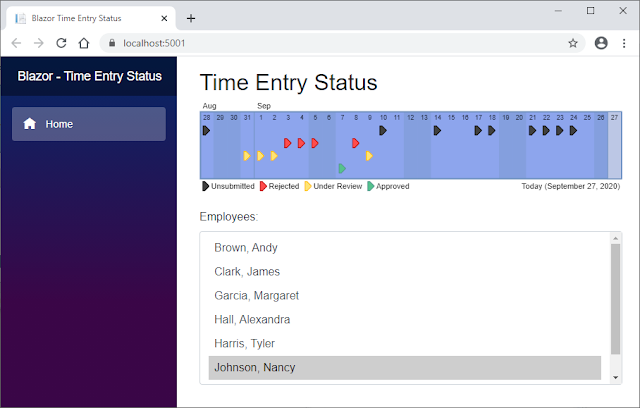
As I was digging into WebAssembly from a C# perspective for an article that I was preparing to write, I decided to use some research time that my company gave me to dig into Blazor WebAssembly by rewriting a small Java application that I built in 2011.
This article walks you through creating the Dovico Time Entry Status app using Blazor WebAssembly.
- Using WebAssembly modules in C#

While there were a lot of exciting things being worked on with the WebAssembly System Interface (WASI) at the time of my book's writing, unfortunately, it wasn't until after the book went to production that an early preview of the Wasmtime runtime was announced for .NET Core.
I wrote this article to show you how your C# code can load and use a WebAssembly module via the Wasmtime runtime for .NET. The article also covers how to create custom model validation with ASP.NET Core MVC.
- Using the import statement with an Emscripten-generated WebAssembly module in Vue.js

Over the 2019 Christmas break, I helped a developer find a way to import an Emscripten-generated WebAssembly module into Vue.js. This article details the solutions found.
Disclaimer: I was not paid to write this article but I am paid royalties on the sale of the book
"WebAssembly in Action".


 My book shows you how to use WebAssembly threads but, at the time of its writing, they were only available in Firefox behind a flag. They're no longer behind a flag but Firefox has added a requirement: To enable the SharedArrayBuffer, you need to include two response headers.


